

Ready to explore one of the world’s largest online marketplaces? Creating an AliExpress account is your first step toward discovering millions of products at competitive prices. Whether you’re a seasoned online shopper or new to the platform, this guide will make the registration process simple and fast.
This guide provides clear, step-by-step instructions for signing up on both your computer and the mobile app. We’ll also share tips for securing your new account and troubleshooting common issues, so you can start shopping in just a few minutes.
How to Register on the AliExpress Website (Desktop)
Creating an account on your computer is quick and straightforward. Follow these simple steps.
- Go to the AliExpress Website: Open your web browser and navigate to the official AliExpress homepage.
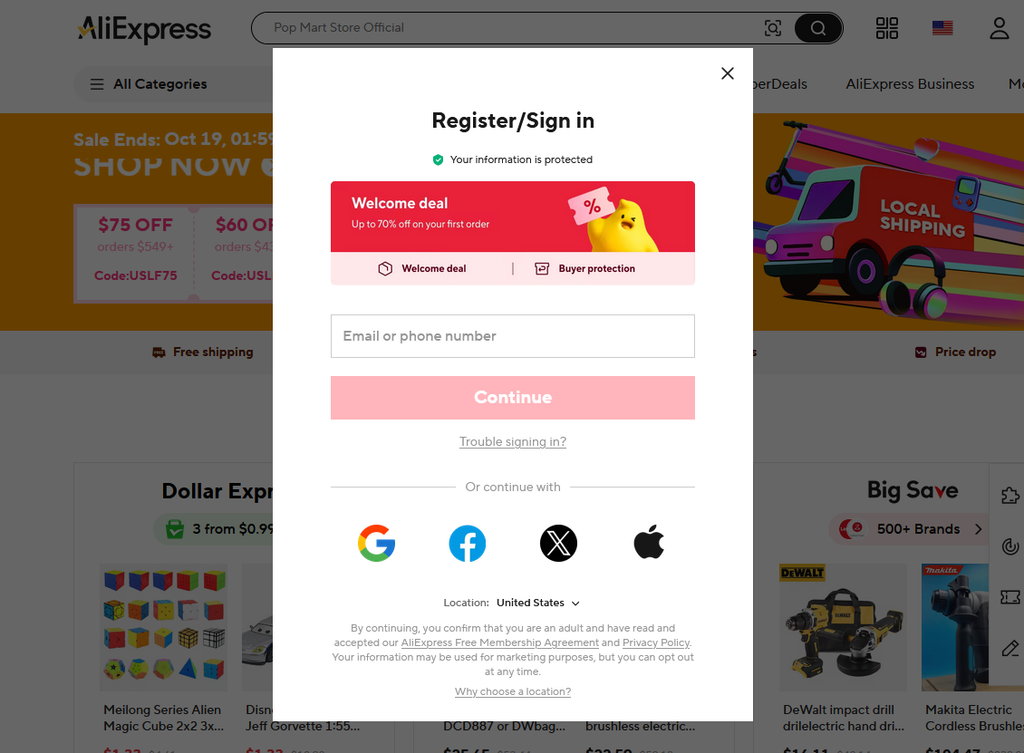
- Locate the ‘Join’ Button: In the top-right corner of the page, hover over the “Account” icon and click the “Join” button.
- Choose Your Sign-Up Method: You will be presented with several options:
- Email Registration: Enter your email address and create a secure password.
- Social Media Sign-Up: You can also register using your Google, Facebook, Apple, or Twitter account for a faster process.
- Enter Your Details: If signing up with email, fill in the required fields. Click “Create Account.”
- Verify Your Email: AliExpress will send a verification code to the email address you provided. Check your inbox (and spam folder), enter the code on the registration page, and click “Verify Email.”
- Complete Your Profile: Once verified, your account is active! You can now go to your “Account” section to add a shipping address and other personal details to make checkout faster later.
How to Register on the AliExpress Mobile App
Signing up through the mobile app is just as easy and perfect for shopping on the go.
- Download the App: Get the official AliExpress app from the Google Play Store (for Android) or the Apple App Store (for iOS).
- Open the App and Go to Account: Launch the app and tap on the “Account” icon, usually located in the bottom-right corner.
- Tap ‘Sign in / Register’: At the top of the Account screen, tap the “Sign in / Register” option.
- Select ‘Register’: You will see options to sign in. Tap on the “Register” link, often found near the sign-in button.
- Choose Your Registration Method: Similar to the desktop version, you can register with your email address or connect a social media account (Google, Facebook, etc.).
- Verify Your Account: If you use email, you’ll receive a verification code. Enter it into the app to confirm your account. If you use a social account, you’ll simply need to authorize the connection.
- You’re All Set! Your account is now ready. You can start browsing products and add your shipping information directly within the app.
Tips for a Secure and Complete Profile
A secure and complete profile makes your shopping experience smoother and safer.
- Create a Strong Password: Don’t reuse passwords from other sites. Your AliExpress password should be a mix of upper and lowercase letters, numbers, and symbols to protect your account from unauthorized access.
- Complete Your Shipping Profile: Go to “Account”> “Shipping Address” and fill in your details accurately. Having this ready will save you time during checkout.
- Enable Two-Factor Authentication (2FA): For an extra layer of security, consider enabling 2FA if available in your region. This sends a code to your phone or email every time you log in from a new device.
Troubleshooting Common Registration Issues
Running into a problem? Here are some quick fixes for common registration hurdles.
- Problem: Verification Email Not Received.
- Solution: First, check your spam or junk folder. If it’s not there, wait a few minutes, as there can sometimes be a delay. You can also click the “Resend Code” button on the registration page. Make sure you entered your email address correctly without any typos.
- Problem: “Email Address is Already Registered.”
- Solution: This message means an account already exists with that email. You may have signed up in the past. Try using the “Forgot Password” link on the sign-in page to reset your password and access the existing account.
- Problem: Social Media Sign-Up Isn’t Working.
- Solution: Ensure your pop-up blocker is temporarily disabled, as it might be blocking the authorization window from your social media provider. Also, check that you are logged into the social media account you are trying to use.
Conclusion
Congratulations! You now have a fully functional AliExpress account. By following these simple steps, you’ve unlocked access to a massive selection of products from around the world. Remember to keep your password secure and your profile information up to date for the best possible shopping experience. Happy shopping.

Leave a Reply