

We have tested deleting and disabling history features across multiple account types. The viewing history tracks items for 30-60 days depending on platform version. The main limitation: clearing viewing history does not reset personalized recommendations. Those require different steps to address.
This guide covers how to find, delete, and disable your viewing and search history on both desktop and mobile, plus how to address persistent recommendations.
Where is your AliExpress history located
AliExpress tracks two types of history: viewing history (products you clicked on) and search history (terms you typed in the search bar).
| History type | Desktop location | Mobile app location |
|---|---|---|
| Viewing history | Account > My Orders > Viewed | Account > My Services > Viewed |
| Search history | Click search bar (dropdown shows recent searches) | Tap search bar (recent searches appear below) |
Viewing history retention:
| Platform | Retention period |
|---|---|
| Desktop website | 30 days |
| Mobile app | Up to 60 days |
Both histories sync between devices if you are logged into the same account.
Who can see your viewing history
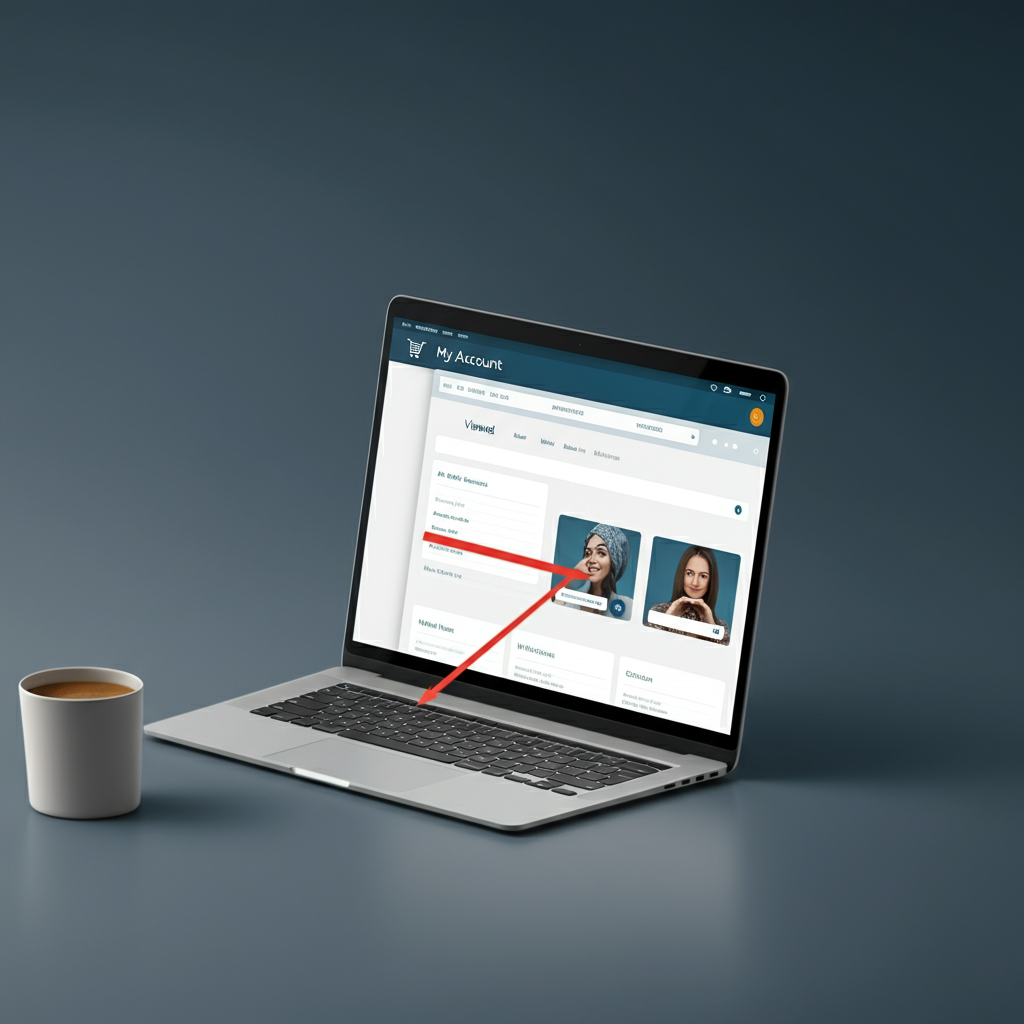
Your viewing history is tied to your account, not your device. Anyone with access to your login credentials can see what you have viewed.
| Access method | Can see history? |
|---|---|
| Logged into your account (any device) | Yes |
| Same device, not logged in | No |
| Public users | No |
Search history is different: Recent searches on the mobile app are stored locally on the device. Someone using your phone without logging into your account could still see recent search terms.
How to delete your AliExpress history on desktop
Delete all viewing history
- Log in to your AliExpress account
- Navigate to Account > My Orders > Viewed
- Click the “Delete all” button in the top-right corner
Your entire viewing history is deleted immediately. This does not prevent future tracking; AliExpress will continue recording products you view.
Delete individual items
- Navigate to Account > My Orders > Viewed
- Hover over any product image
- Click the “X” button in the upper-left corner of that item
This removes only the selected item from your history.
Clear search history
- Click on the search bar at the top of the page
- Recent searches appear in a dropdown
- Click “Clear” or the trash icon to remove all search terms
How to delete your AliExpress history on mobile app
The mobile app handles history deletion differently from desktop. You cannot simply clear history; you must disable the feature entirely.
Delete viewing history (by disabling)
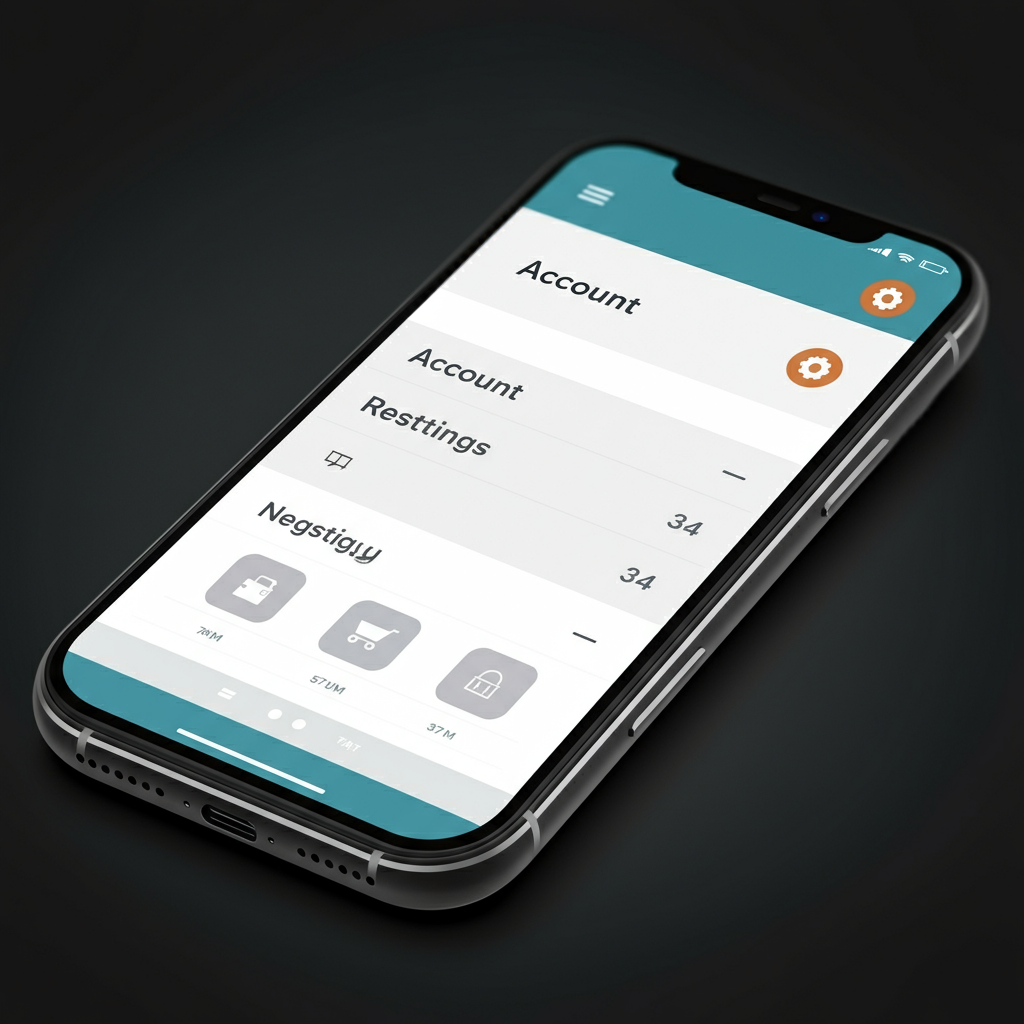
- Open the AliExpress app
- Tap Account (bottom-right corner)
- Tap the gear icon (Settings)
- Select “Viewed” or “History”
- Toggle the switch to “Off”
A confirmation message appears stating that your existing history will be erased. Toggling off both deletes current history and prevents future tracking.
Clear search history
- Tap the search bar at the top of the app
- Recent searches appear below
- Tap the trash can icon to delete all search terms
Search history on mobile is device-specific. Clearing it on your phone does not affect search history visible when using the same account on desktop.
How to deactivate your viewing history
If you want to stop AliExpress from saving your viewing history going forward, you need to deactivate the feature.
Deactivate on mobile app
- Account > Settings > Viewed (or History)
- Toggle the switch to “Off”
This is the most reliable method. The toggle clearly indicates on/off status.
Deactivate on desktop
The desktop deactivation uses confusing wording:
- Navigate to Account > My Orders > Viewed
- Click the “Preferences” button (or “Setting”) in the top-right corner
- Click “Enable recently viewed items”
Despite the wording, clicking this button disables the feature if it is currently enabled. The button text toggles between “Enable” and “Turn off” based on current state. This appears to be a translation issue in the interface.
| Current state | Button text | What clicking does |
|---|---|---|
| History enabled | “Turn off Recently Viewed Products” | Disables tracking |
| History disabled | “Turn on Recently Viewed Products” | Enables tracking |
Why recommendations persist after clearing history (and how to reset them)
A common frustration: after deleting viewing history, AliExpress homepage still shows recommendations based on previous browsing. This happens because recommendations use multiple data sources beyond viewing history.
What feeds recommendations:
| Data source | Cleared when you delete history? |
|---|---|
| Viewing history | Yes |
| Search history | Separate deletion required |
| Purchase history | No (permanent record) |
| Category browsing patterns | No |
| Items added to cart | No |
| Items added to wishlist | No |
| Cross-site tracking cookies | No |
How to reset recommendations:
- Clear viewing history (as described above)
- Clear search history separately
- Clear browser cookies for aliexpress.com
- Browse different categories intentionally to “train” new preferences
- Wait several days for the algorithm to adjust
AliExpress states: “It may take some time for the recommendation system to change the list of recommended items based on your preferences.”
For faster results: Intentionally search for and view products in categories you actually want to see. The algorithm weights recent activity more heavily than old history.
Complete privacy cleanup: browser cache, cookies, and app data
Clearing AliExpress history within the platform is one layer. For full privacy (especially if sharing a device), you also need to clear browser and app data.
Browser cache and cookies (desktop)
Chrome:
- Settings > Privacy and security > Clear browsing data
- Select “Cookies and other site data” and “Cached images and files”
- Time range: All time
- Click Clear data
Firefox:
- Settings > Privacy & Security > Cookies and Site Data > Clear Data
- Select both checkboxes
- Click Clear
Safari:
- Preferences > Privacy > Manage Website Data
- Search for “aliexpress”
- Select and click Remove
App cache (mobile)
Android:
- Open AliExpress app
- Account > Settings > Clear Cache
- Confirm
iOS:
- Settings > General > iPhone Storage
- Find AliExpress
- Tap “Offload App” (preserves data) or “Delete App” (removes all data)
- Reinstall from App Store if deleted
What each step clears
| Action | What it clears |
|---|---|
| Delete viewing history (AliExpress) | Products you viewed |
| Clear search history (AliExpress) | Terms you searched |
| Clear browser cookies | Login state, tracking data, session info |
| Clear browser cache | Stored images, scripts, page data |
| Clear app cache | Temporary files, offline data |
| Delete/reinstall app | All local app data |
Note: Clearing browser cookies will log you out of AliExpress. You will need to log in again.
Search history vs viewing history: key differences
| Feature | Viewing history | Search history |
|---|---|---|
| What it tracks | Products you clicked on | Terms you typed |
| Desktop location | Account > Viewed | Search bar dropdown |
| Mobile location | Account > Viewed | Search bar |
| Syncs across devices | Yes | Partially (mobile is device-local) |
| Delete method (desktop) | Delete all button | Click trash in dropdown |
| Delete method (mobile) | Must disable feature | Tap trash icon |
| Affects recommendations | Yes | Yes |
Final thoughts
Clearing AliExpress history requires addressing multiple layers: viewing history, search history, browser data, and app cache. The platform interface has some confusing elements, particularly the “Enable” button that actually disables tracking on desktop.
The main limitation is recommendations. Even after clearing all history, recommendations persist for some time because they draw from purchase data and browsing patterns that are not fully deleted. Intentionally browsing new categories accelerates the reset process.
For shared accounts, consider creating separate AliExpress accounts. The platform is free to use, and individual accounts eliminate the need to manage shared browsing data.
FAQ
1. How long does AliExpress keep my viewing history?
AliExpress stores viewing history for 30 days on desktop and up to 60 days on the mobile app. After this period, old entries are automatically deleted. However, AliExpress may retain other data (purchase history, search patterns) indefinitely for recommendation purposes.
2. Why do I still see product recommendations after deleting my history?
Recommendations use multiple data sources beyond viewing history, including purchase history, search terms, category browsing patterns, and cross-site cookies. Clearing viewing history alone does not reset all these inputs. To fully reset recommendations, also clear search history, browser cookies, and intentionally browse different product categories.
3. Can I delete individual items from my history instead of clearing everything?
On desktop, yes. Navigate to your Viewed section, hover over the product image, and click the X button. On the mobile app, individual deletion is not available; you can only disable the entire history feature, which deletes everything.
4. Is my viewing history visible to other people?
Your viewing history is private and only visible when logged into your account. However, anyone with your login credentials can see it from any device. Mobile search history is stored locally on the device and may be visible to others using that device, even without logging in.
5. How do I stop AliExpress from tracking my viewing history?
On mobile: Account > Settings > Viewed > toggle Off. On desktop: Account > Viewed > Preferences > click the toggle button. When disabled, AliExpress will not record products you view. You can re-enable tracking at any time through the same settings.

Leave a Reply